Table of Contents
A Practical Step-by-Step Guide
This article is for: IT Directors, CFOs, and Operations Managers currently using Microsoft Dynamics GP who need a technical and operational roadmap to transition to the cloud without disrupting business continuity.
TL;DR: Key Takeaways
- Data Limit: Only migrate master records and 2 years of open transactions to ensure performance.
- Tooling: Use the built-in Microsoft Cloud Migration Extension for automated data transfer.
- Security: Transition from GP’s user-based security to Microsoft Entra ID (formerly Azure AD) roles.
- Cost Saving: Leverage the “Bridge to the Cloud 2” promotion for up to a 40% discount on licensing.
Phase 1: The Pre-Migration Technical Audit
Before moving a single byte of data, you must evaluate your current Microsoft Dynamics GP environment. Many legacy systems have been modified over 10 or 20 years, creating “technical debt” that can break a cloud migration. You need to identify which Third-Party Products (ISVs) are essential and whether they have a Power Platform or Business Central equivalent.
Check your SQL Server version immediately. To use the standard migration tools, your on-premises SQL Server must be SQL Server 2016 or later with a compatibility level of 130 or higher. If you are running on SQL 2012, you must upgrade your database engine locally before the cloud transition begins.
According to Microsoft’s official migration documentation, the migration process supports GP versions 2015 and later. If you are on an older version, a “double-hop” upgrade (moving to GP 2018 first) is typically required. Engaging experienced Microsoft Dynamics 365 consulting services during this audit phase can save approximately 50 to 100 hours of troubleshooting later in the project.
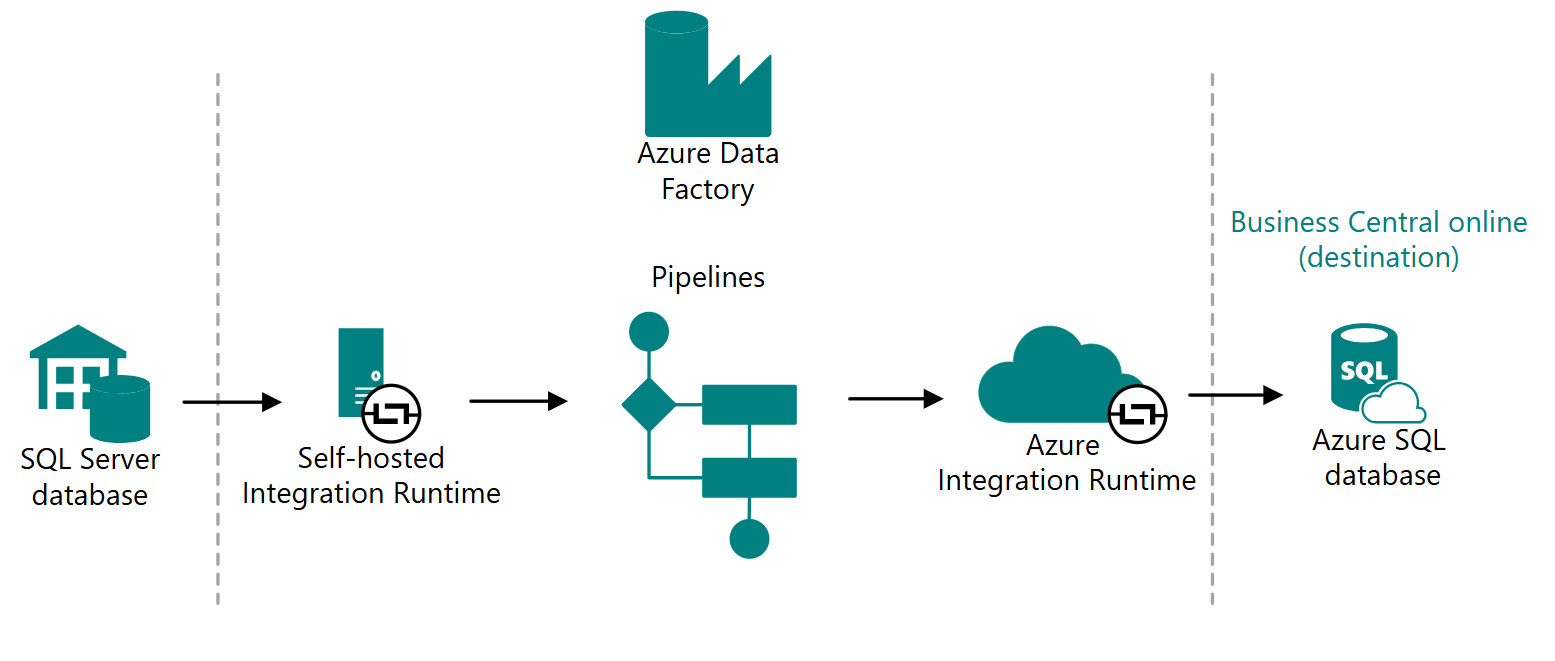
Figure 1: Conceptual data flow from on-premises SQL Server to Azure SQL Database via the Integration Runtime.
Phase 2: Data Cleansing and Mapping
One of the most common mistakes in ERP migration is trying to move 20 years of historical data. This bloats the cloud database and slows down reporting. Focus on migrating master records (Customers, Vendors, Items, and Chart of Accounts) and open transactions.
Chart of Accounts vs. Dimensions
In Dynamics GP, you likely use a segmented Chart of Accounts (e.g., 01-100-5100-05). In Microsoft Dynamics 365 Business Central, you use a natural account number plus Dimensions. This is a fundamental shift. You must map your legacy segments to Global Dimensions (like Department, Project, or Region) to gain the 30% increase in reporting flexibility that cloud ERPs offer.
The Data Scrubbing Process
- Remove Inactive Records: Delete or archive vendors and customers with no activity in the last 5 years.
- Standardize Formats: Ensure all phone numbers, addresses, and tax IDs follow a uniform format using SQL scripts or Excel Power Query.
- Reconcile Balances: Ensure your Trial Balance in GP matches your sub-ledgers (AR/AP) exactly before the extract.
Data precision is vital; even a 0.01 discrepancy in an opening balance can prevent the migration tool from finalizing the batch. For more on preparing your team for this shift, visit our about us page to see how we structure data workshops.
Phase 3: Executing the Cloud Migration Tool
Microsoft provides a Cloud Migration Extension within Business Central. This tool uses the Self-Hosted Integration Runtime (SHIR) to create a secure bridge between your local SQL server and the Azure cloud environment. This is not a manual CSV upload; it is an automated pipeline.
Once the connection is established, you can select specific companies to migrate. The tool handles the heavy lifting of converting GP tables into Business Central tables. However, it is important to note that customizations (VBA or Dexterity) do not migrate. These must be rebuilt as “Extensions” using AL (Application Language).
During the migration, the tool provides a status dashboard. Expect the initial synchronization to take anywhere from 4 to 24 hours depending on database size. Recent benchmarks suggest that a 50GB database typically migrates in roughly 12 hours over a standard 100Mbps business fiber connection.
Also Read: How to Evaluate an ERP Implementation Partner (2026 Guide)
Phase 4: UAT and Training Strategy
User Acceptance Testing (UAT) is the most critical phase for business buy-in. This is where your “Super Users” verify that the migrated data is accurate and that the new workflows satisfy daily requirements. You should perform at least two full test migrations before the final cutover.
Focus Areas for Testing
- Check Printing: Ensure MICR fonts and layouts align with your bank requirements.
- User Permissions: Test that a ‘Sales Clerk’ role cannot access ‘Payroll’ data.
- Inventory Valuation: Verify that Unit Costs and On-Hand quantities match GP exactly.
Training should be role-specific. Instead of showing the whole system, show the warehouse team how to use the web-based “Bin Content” view and show the accounting team how to use the “Edit in Excel” feature. Training usually accounts for 20% of the total project timeline but yields the highest ROI in user adoption. Check out our blog for deep dives into specific module training.
Phase 5: The Go-Live Cutover
The final cutover usually happens over a weekend. On Friday evening, users are locked out of Dynamics GP. A final differential backup is taken, and the Cloud Migration Tool is run one last time to pull the final week’s transactions.
Post-migration, you must perform a Trial Balance Validation. Compare the Trial Balance (Summary) from GP against the Trial Balance in Business Central. If the numbers match, you can officially open the system for Monday morning operations. Most organizations see a 15–20% improvement in processing speed within the first 3 months due to the removal of legacy hardware bottlenecks.
For complex global organizations, professional Microsoft Dynamics 365 consulting services are recommended to manage the multi-currency and intercompany complexities that often arise during the final cutover hours.
Migration Readiness Checklist
Use this tool to track your progress. Ensure every item is marked “Complete” before attempting a production migration.
| Category | Action Item | Requirement |
|---|---|---|
| Technical | SQL Server Version | 2016 or higher |
| Data | Historical Years | Max 2–3 years recommended |
| Licensing | Bridge to the Cloud 2 | Confirm eligibility (40% discount) |
| Infrastructure | Internet Upload Speed | Minimum 25Mbps (recommended 100Mbps) |
| Integration | ISV Compatibility | Verify Business Central versions exist |
Frequently Asked Questions
1. Will my GP customizations move to Dynamics 365?
No. Dynamics GP uses Dexterity and VBA, while Business Central uses AL code. All customizations must be re-evaluated. Often, what required a customization in GP is now a standard feature in Business Central.
2. How long does the migration typically take?
A standard migration for a mid-sized company (15–30 users) usually takes 12 to 16 weeks from the initial audit to the go-live date. This includes time for data cleansing, two test migrations, and training.
3. Can I keep my GP data for historical reference?
Yes. Most companies maintain a read-only instance of GP on a local server or move the historical data to an Azure SQL database for occasional querying via Power BI, while only bringing active data into D365.
4. What is the cost difference between GP and D365?
While GP involves high upfront costs and maintenance (EP), D365 is a monthly subscription. Users often save 25% on annual IT costs by eliminating server maintenance, backups, and manual upgrade labor.
5. Does Microsoft provide a free migration tool?
Yes, the Cloud Migration Extension is built into Business Central at no extra cost, though it requires technical configuration to work with your on-premises firewall and SQL settings.

